Introduction
Security Operations Center (SOC) teams need continuous, realistic training to stay sharp against evolving threats. This article provides a practical guide for designing and executing a hands-on training scenario using the M&NTIS platform in combination with Azure Arc and Microsoft Sentinel. The goal is to simulate a real-world attack — specifically the Lumidus scenario, which includes a Zerologon exploit — and walk through the necessary steps to prepare the environment, configure alerting rules in Microsoft Sentinel, and guide SOC teams through detection and incident response. Whether you are a SOC lead or an instructor, this guide will help you set up an effective, immersive training experience.
The selected scenario for the exercise is Lumidus. In the scenario, the attacker performs a Zerologon attack on the AD server of the lab.
Lumidus related detection rules
M&NTIS provides SIEM detection rules along with its scenarios. The idea behind those signatures is to create an entry point for SOC teams to start the analysis of the scenario. When executed, the scenario will triger alerts in the SIEM. Thanks to these alerts, analysts can retrieve logs on the machines and investigate to understand the whole killchain.
The selected scenario, Lumidus, is provided
with at least two signatures detecting: - an attempt to a
Zerologon attack and - an evil file hash execution
detection.
It is possible to retrieve the signatures of a scenario by either using the M&NTIS Command Line Interface (CLI) or the frontend (GUI).
M&NTIS GUI
In order to retrieve the signatures directly from the
M&NTIS frontend, you have to click View more
on the Lumidus scenario. Then, on the kill chain
attack list, you have at least two signatures (the blue symbol
on the right) :
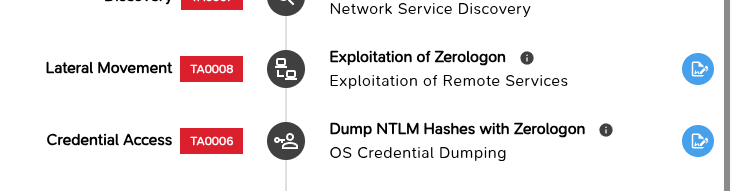
By clicking on the signature pane, you can see the signatures the M&NTIS Platform offers for the scenario.
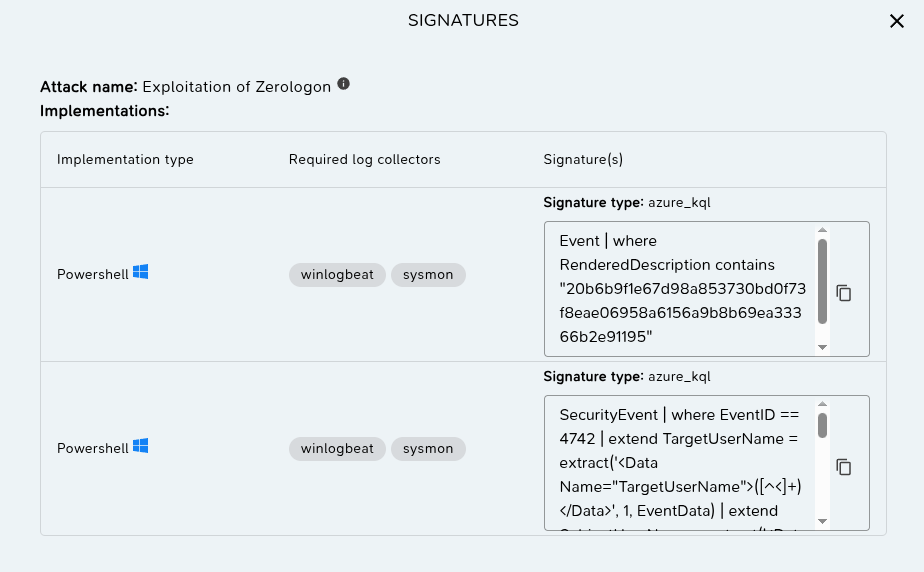
The signature format here is KQL for Azure
Sentinel.
M&NTIS CLI
To achieve this, you can execute the next command:
$ mantis signature info --scenario lumidus

[+] intern_zerologon
  [+] available implementations:
  [>] powershell
    [+] Format azure_kql
    Event | where RenderedDescription contains "20b6b9f1e67d98a853730bd0f73f8eae06958a6156a9b8b69ea33366b2e91195"

  [>] powershell
    [+] Format azure_kql
    SecurityEvent | where EventID == 4742 | extend TargetUserName = extract('<Data Name="TargetUserName">([^<]+)</Data>', 1, EventData) | extend SubjectUserName = extract('<Data Name="SubjectUserName">([^<]+)</Data>', 1, EventData) | extend PasswordLastSet = extract('<Data Name="PasswordLastSet">([^<]+)</Data>', 1, EventData) | where SubjectUserName == "ANONYMOUS LOGON" | where PasswordLastSet != "-" and isnotempty(PasswordLastSet) | project TimeGenerated, TargetUserName, SubjectUserName, PasswordLastSet, Computer, EventID

[+] intern_secretdumps_smb
  [+] available implementations:
  [>] powershell
    [+] Format azure_kql
    Event | where RenderedDescription contains "50b252867fab0a37ea53b5f4967ede4307eda1e0b4d42b026551c2e226c75f46"
Detection rules used in the tutorial
Three different detection rules for two attacks are
available for the Lumidus scenario:
intern_zerologon and
intern_secretdumps_smb.
In this article the signatures used are: - the one of
intern_secretdumps_smb and - the second one for
intern_zerologon.
Preparing Azure Arc
Scenario setup
In this article, the organizer adds both of the rules to
the Microsoft Sentinel. However, he could choose to add only
one of them or none in order to increase the difficulty for
the SOC team under test. On the M&NTIS platform lab
creation page, you need to first create a lab. You can tweak
the delay between attacks to increase the realism of a real
attack killchain. On the “Monitoring and integrations” page,
you have to enable the Azure Arc Agent connector
of the Agents category.
This article does not expand the connector configuration.
However, the Azure
Arc Agent documentation page can guide you through these
steps. Once you reach the Public access tab,
enable the feature. It is useful for your learner to get the
public version of the link. On this public link, the killchain
and the attack steps do not appear in order to prevent learner
to get any extra information during the exercise.

At this point your lab is configured. The Azure Arc Agent will be installed on every compatible machine in the lab (Linux and Windows). Do not start the scenario execution already since the Microsoft Sentinel’s alerts must be configured.
Create alerts in Microsoft Sentinel
In the signatures, the format azure_kql is the
one used for creating alert rules in Microsoft Sentinel. Open
Microsoft Sentinel and click on the Analytics tab of the
Configuration pane.
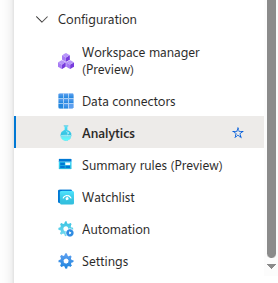
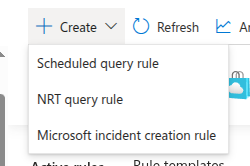
Then, create a new “Scheduled query rule”
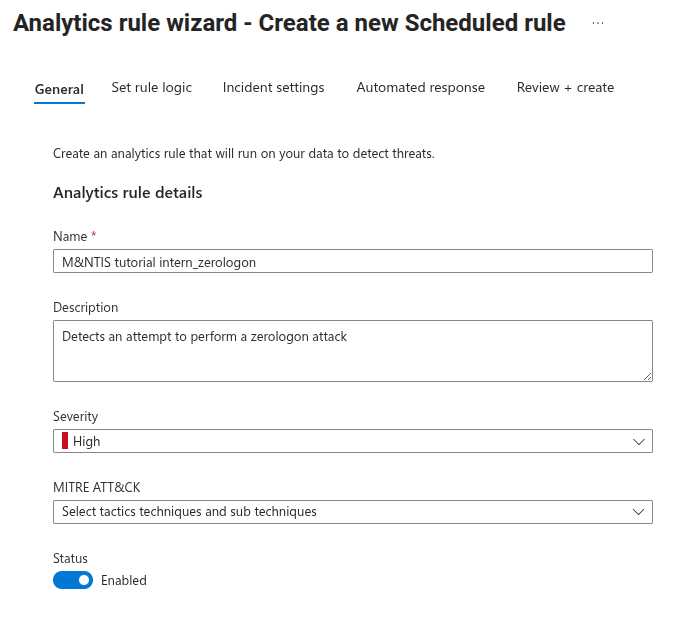
Fill in the general information
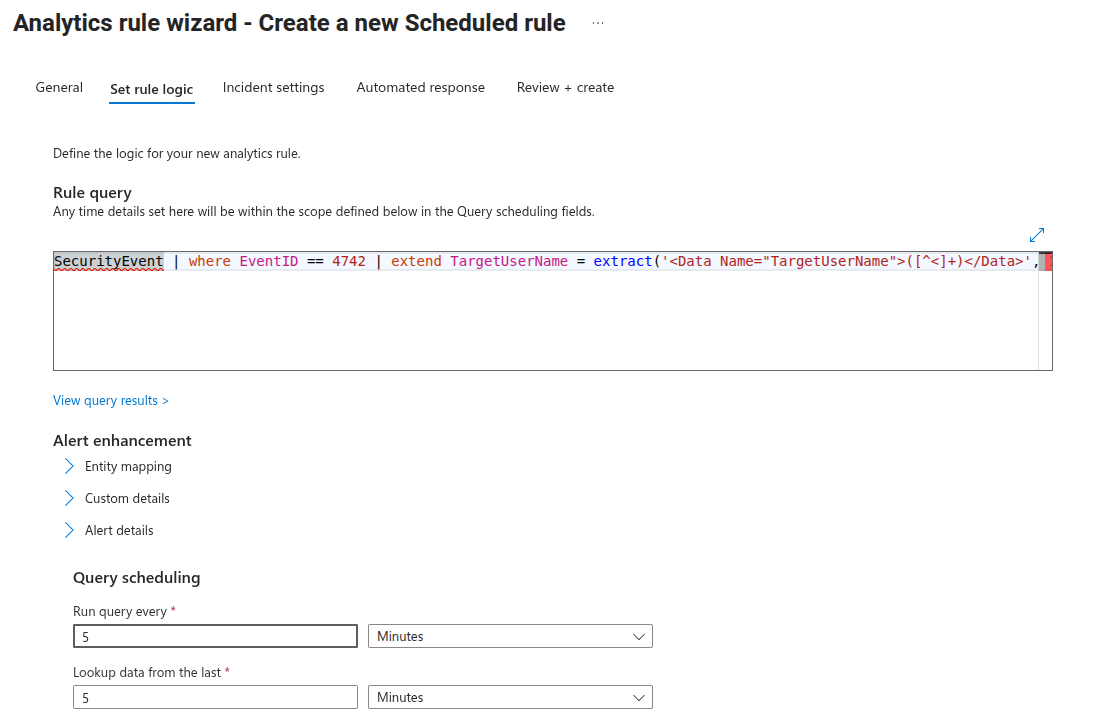
Then, in the Set rule logic tab, copy paste the signature as shown in the previous section in the “Rule query” field. You can tweak the Query scheduling to improve the detection reactivity.
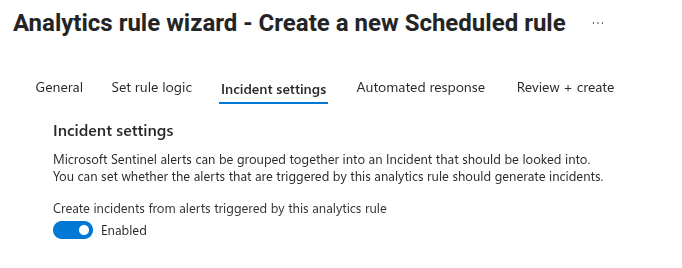
In the Indicent settings tab, make sure the functionality is enabled.
Validate your new alert. It now shall show up in your alert list as follow.

You can add as many signatures as you want. You might want
to add the one of intern_secretdumps_smb to
improve realism. You are now ready to launch the scenario
execution.
After the scenario execution
At the end of the execution of the scenario, incidents should appear in the “Incidents” tab of the “Threat management” pane.
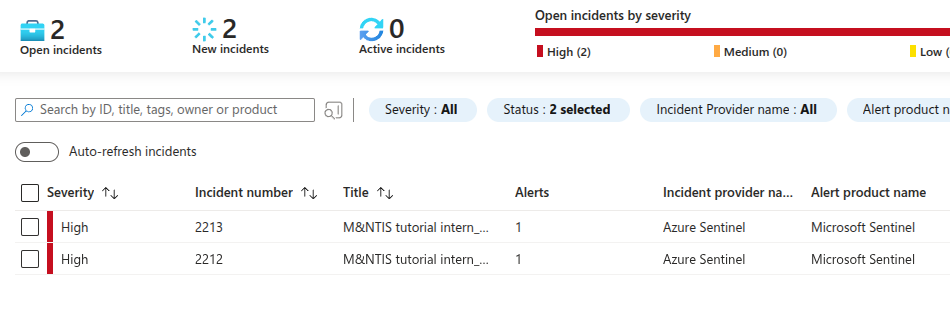
You can get more details about a specific incident. You can click the “View full details” blue button to open the incident menu displaying more information for further analysis.
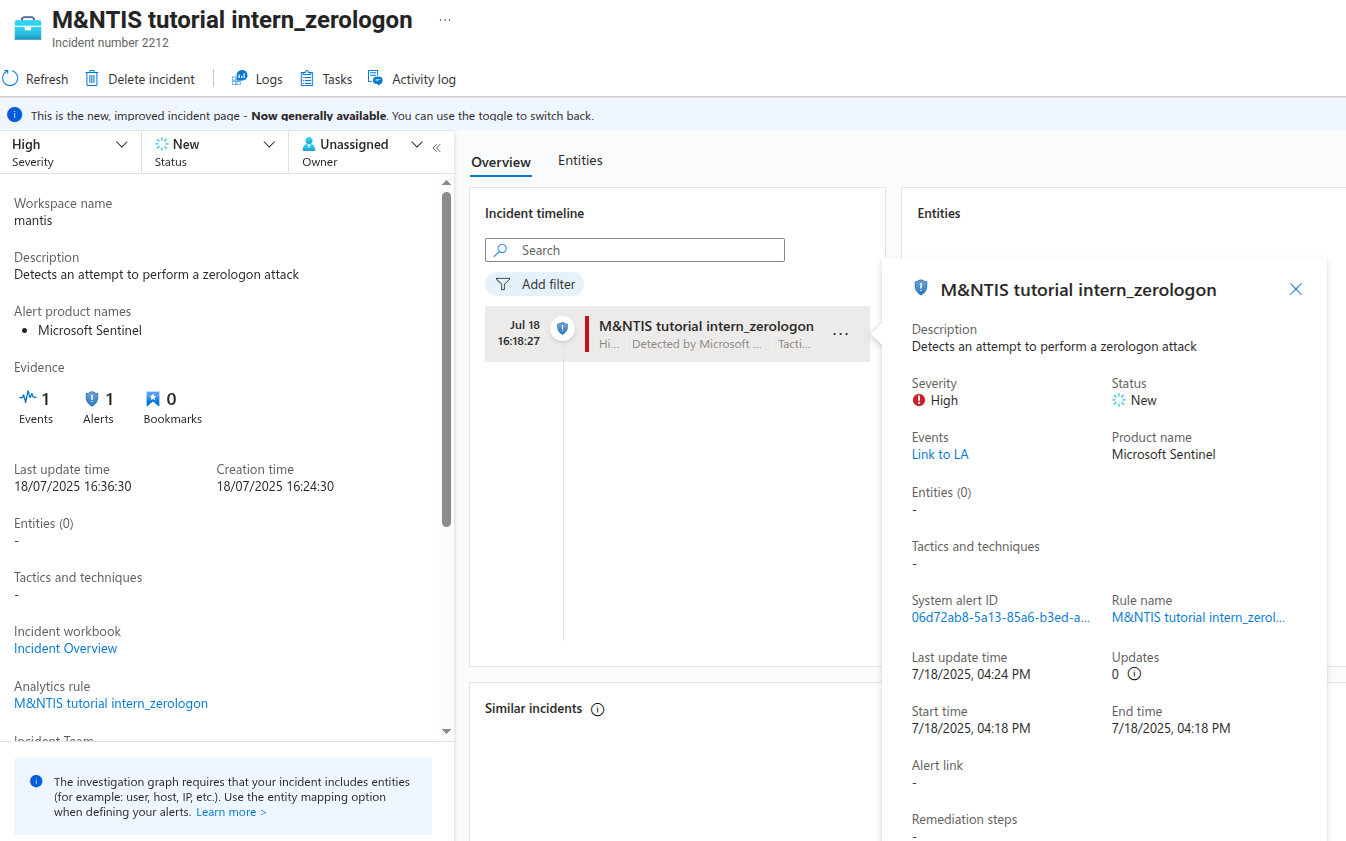
This page allows SOC analysts to describe and follow together the workflow of an incident. They can sort the incident, write tasks and assign each other in order to fully understand an incident.
For more information about, check out the dedicated Microsoft documentation.
Conclusion
By following the steps outlined in this guide, you can create a realistic and controlled training environment for SOC analysts using M&NTIS, Azure Arc, and Microsoft Sentinel. From configuring your lab and enabling telemetry collection with the Azure Arc Agent to crafting custom detection rules in Azure Sentinel, you have full control over the complexity and visibility of the simulated attacks.
Once the scenario is executed, your SOC team can thoroughly test the investigation processes, analyze alerts, investigate incidents, and sharpen their threat detection skills in a safe yet authentic setting.
This method not only reinforces theoretical knowledge but also builds confidence in handling future real-world intrusions.