

Transferring Files to and from a Lab
Overview
Every running lab includes a file transfer service. It allows you to:
- Upload files from your browser into the lab (e.g., tools, configurations),
- Download files from the lab to your browser (e.g., collected artifacts, logs).
From the Browser
Opening the Interface
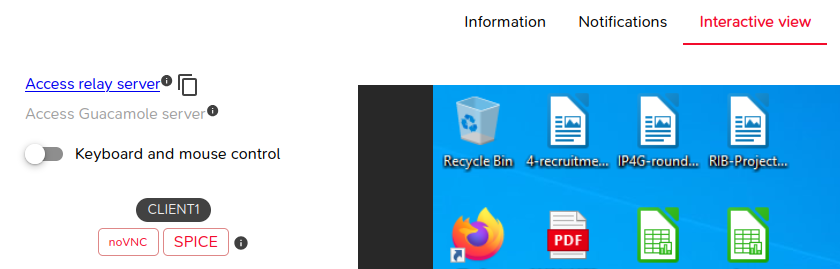
Open the running lab and navigate to the Interactive view tab. On the left panel, click the Access relay server link.
From inside any virtual machine running in the lab, the file transfer service is reachable at the internal address http://relay.mantis.
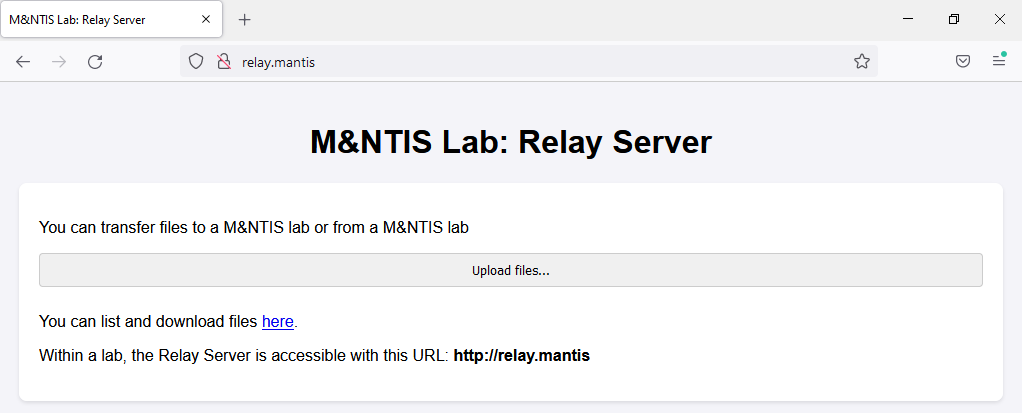
This opens the file transfer web interface in a new browser tab.
Uploading Files
The web interface presents an Upload files... button. Click it, select one or more files, and they will be uploaded automatically to the uploads/ subfolder of the shared storage.
Browsing and Downloading Files
Click the here link on the upload page to open the directory listing. You can browse subdirectories and download any file by clicking on it.
From the Command Line
From Your Local Machine
Copy the URL from the Access relay server link (use the copy icon next to it) and use curl to upload a file at the path of your choice:
curl -T myfile.exe "<relay_url>/webdav/1/provisioning_playbooks/data/my_folder/myfile.exe"You can also download files directly:
curl -O "<relay_url>/webdav/1/provisioning_playbooks/data/my_folder/myfile.exe"From a VM Inside the Lab
From inside any virtual machine running in the lab, the file transfer service is reachable at the internal address http://relay.mantis.
Upload (PowerShell):
Invoke-WebRequest `
  -Uri "http://relay.mantis/webdav/1/provisioning_playbooks/data/exports/myfile.zip" `
  -UseBasicParsing -Method Put `
  -InFile "C:\path\to\myfile.zip" `
  -ContentType "application/octet-stream"
Upload (curl on Linux):
curl -T /path/to/myfile.tar.gz \
  "http://relay.mantis/webdav/1/provisioning_playbooks/data/exports/myfile.tar.gz"
Once uploaded from the VM, the file appears immediately in the directory listing and can be downloaded from your browser.