

Free trial quick start: your first SOC training lab
This guide gets you from your first login on a free trial to a live attack your team investigates in a SIEM. Plan about 30 minutes for the lab to be ready, then the length of your exercise.
In 5 minutes
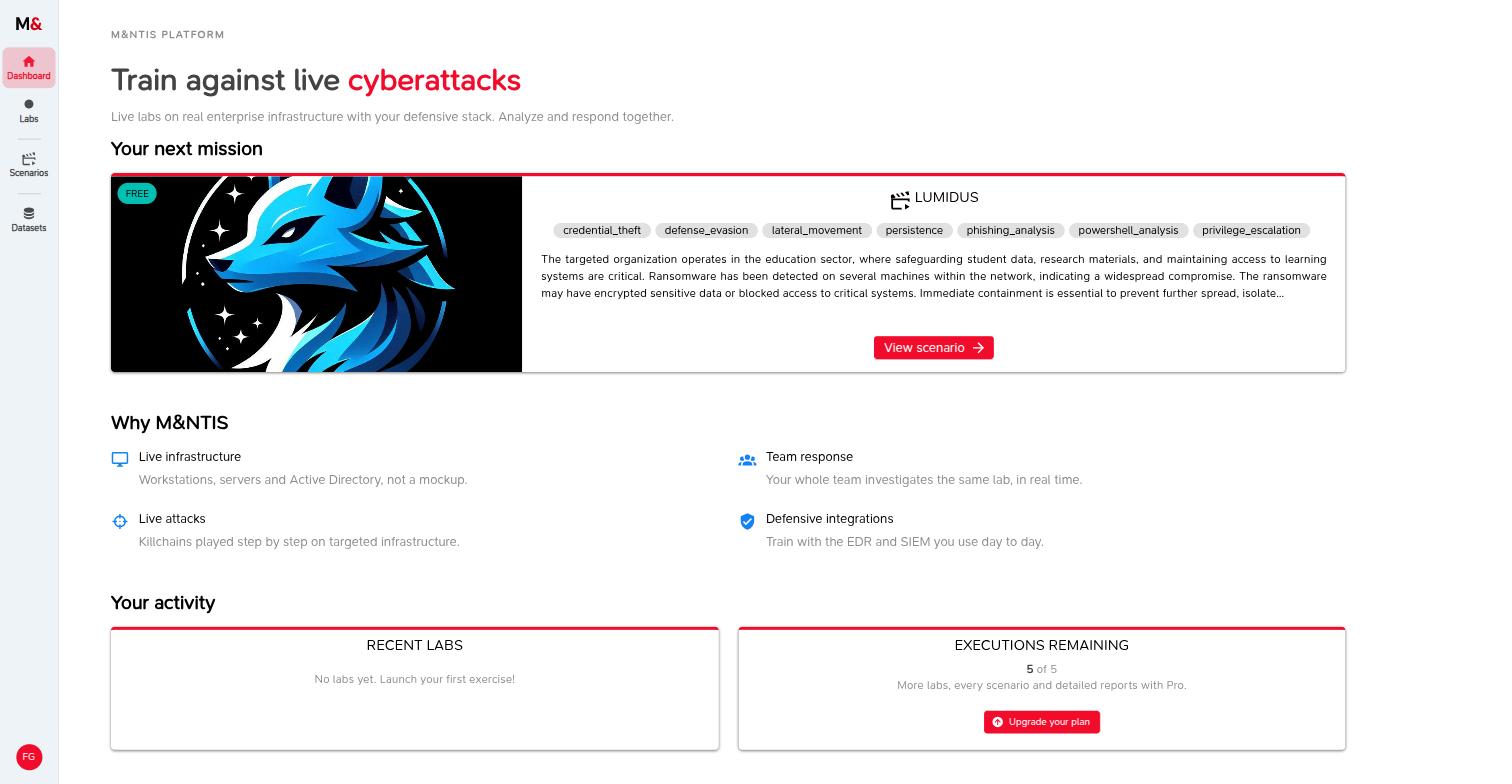
- Dashboard > View scenario on the suggested FREE scenario (Lumidus), then Create a lab.
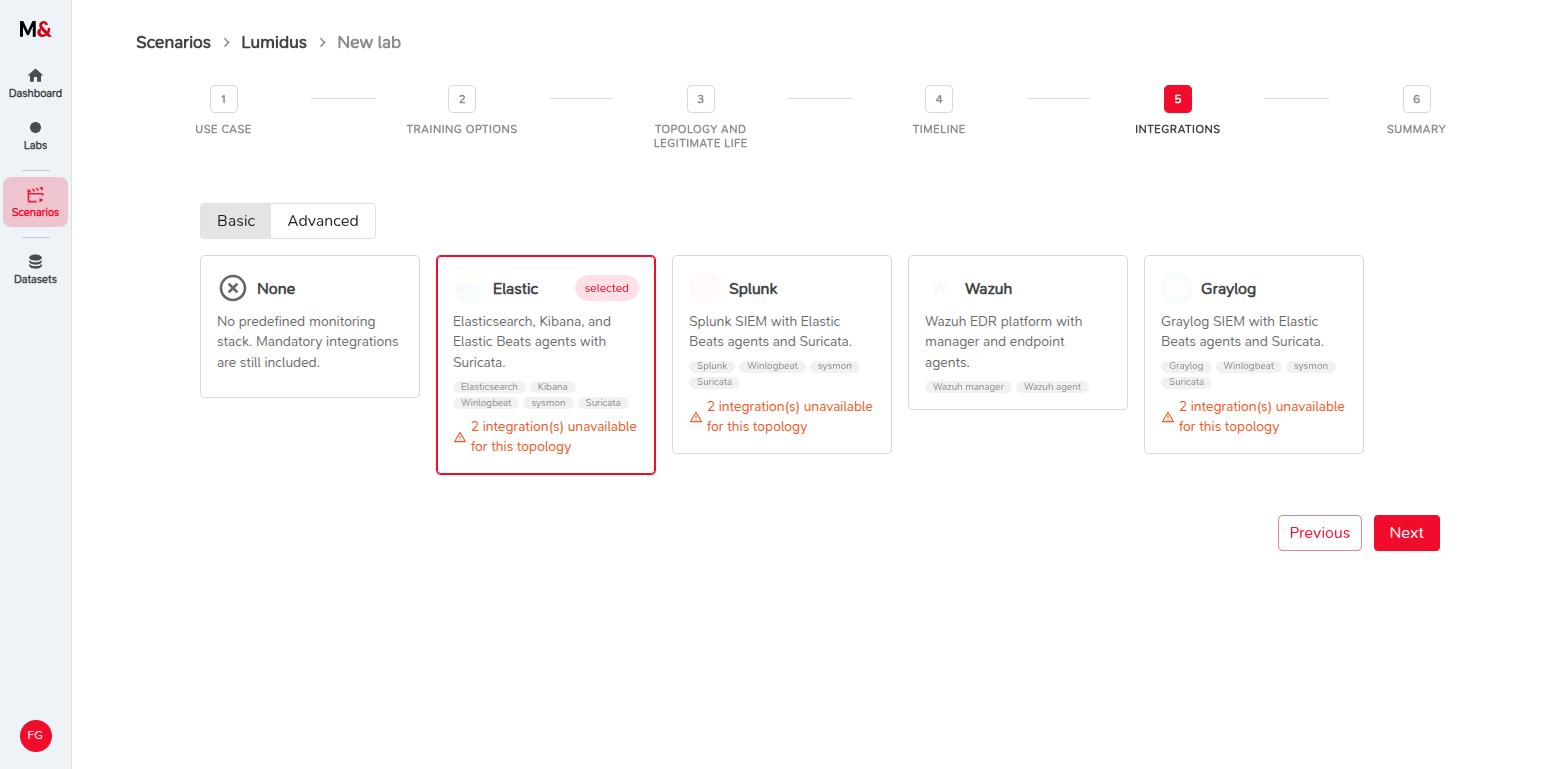
- Keep the defaults, turn on legitimate life, and select a SIEM in the Integrations step (Elastic if you have no preference).
- Run lab (1 credit), then send the Public link to your team.
- When the status reads
SCENARIO_FINISHED(about 25 minutes after launch), open Kibana from the lab and start from the alerts. - For the debrief, click Reveal attack's information and compare what the team found with what the attacker did.
What you are about to do
M&NTIS Platform deploys a real, simulated enterprise network (workstations, servers, Active Directory), plays a real attack scenario against it step by step, and records everything in a security monitoring chain (log agents, network probe, SIEM). During the attack, simulated users work on the machines at the same time.
Your SOC or CERT analysts investigate this live environment with a SIEM, as they would in production. Because the platform knows every step the attacker took, you can then show them exactly what they found and what they missed. This is the blue team training use case.
The trial gives you 30 days and 5 lab runs, on the scenario marked FREE.
1. Pick a scenario
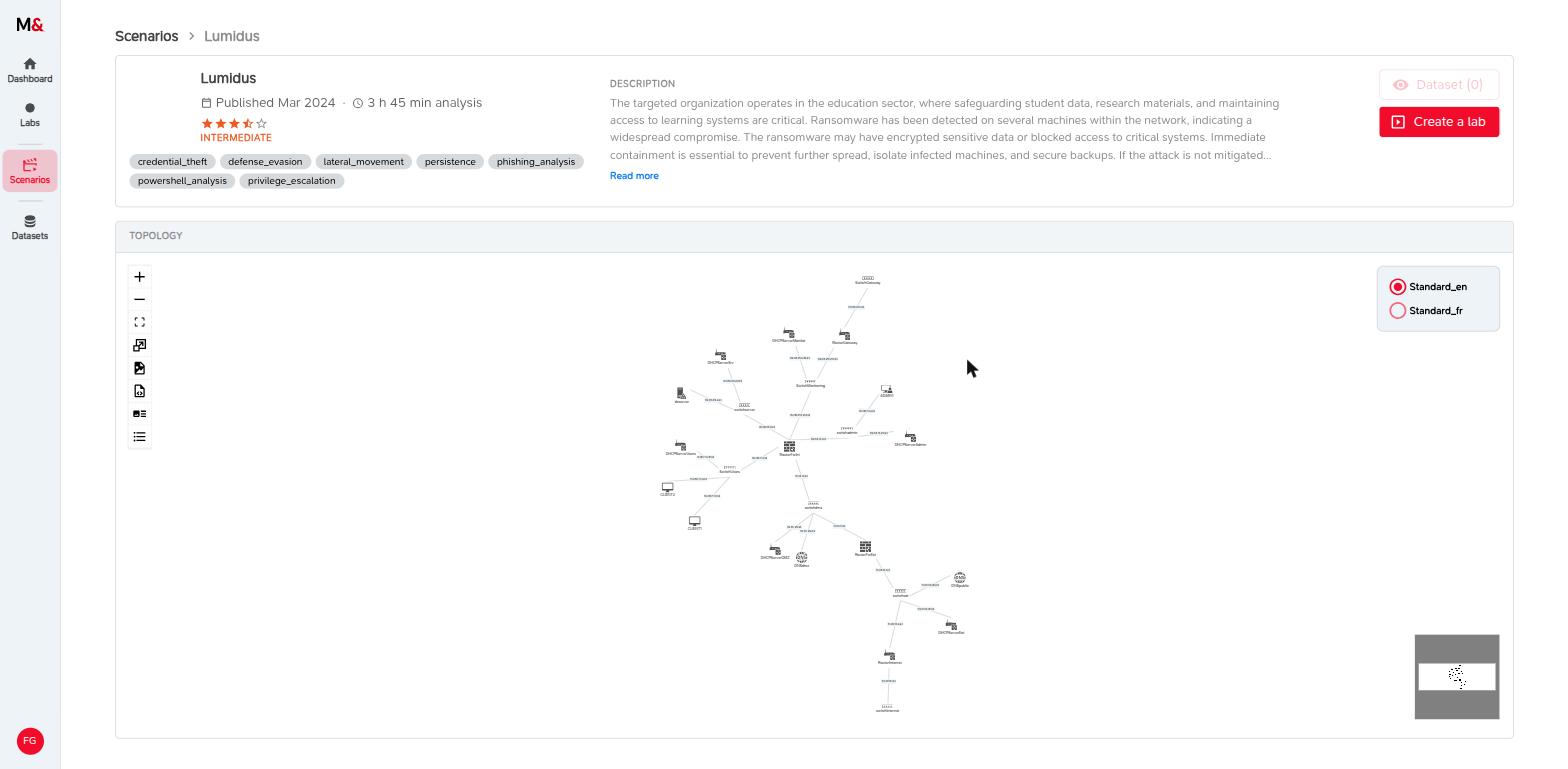
The dashboard suggests a scenario included in your trial, Lumidus: a ransomware attack against an organization in the education sector. Click View scenario to read its description, then Create a lab.
2. Configure the lab, and do not forget the SIEM
The wizard has six steps. The defaults suit a team training session. Check three things:
- Use case: keep Training. It enables the public link for your team, the briefing shown to analysts, and an optional assessment questionnaire.
- Topology and legitimate life: turn on Enable legitimate life, so that your analysts have to separate the attack from normal user activity.
- Integrations: select a SIEM.
Pick one of the presets: Elastic (Kibana), Splunk, Graylog or Wazuh. Each one also deploys the log agents and a network probe.
On the Summary step, click Run lab and confirm. Each run costs 1 credit.
Tips
In the Timeline step, choose a duration that covers both the investigation and the debrief: when the lab stops, the machines and the SIEM are gone.
3. Follow the lab and share it with your team
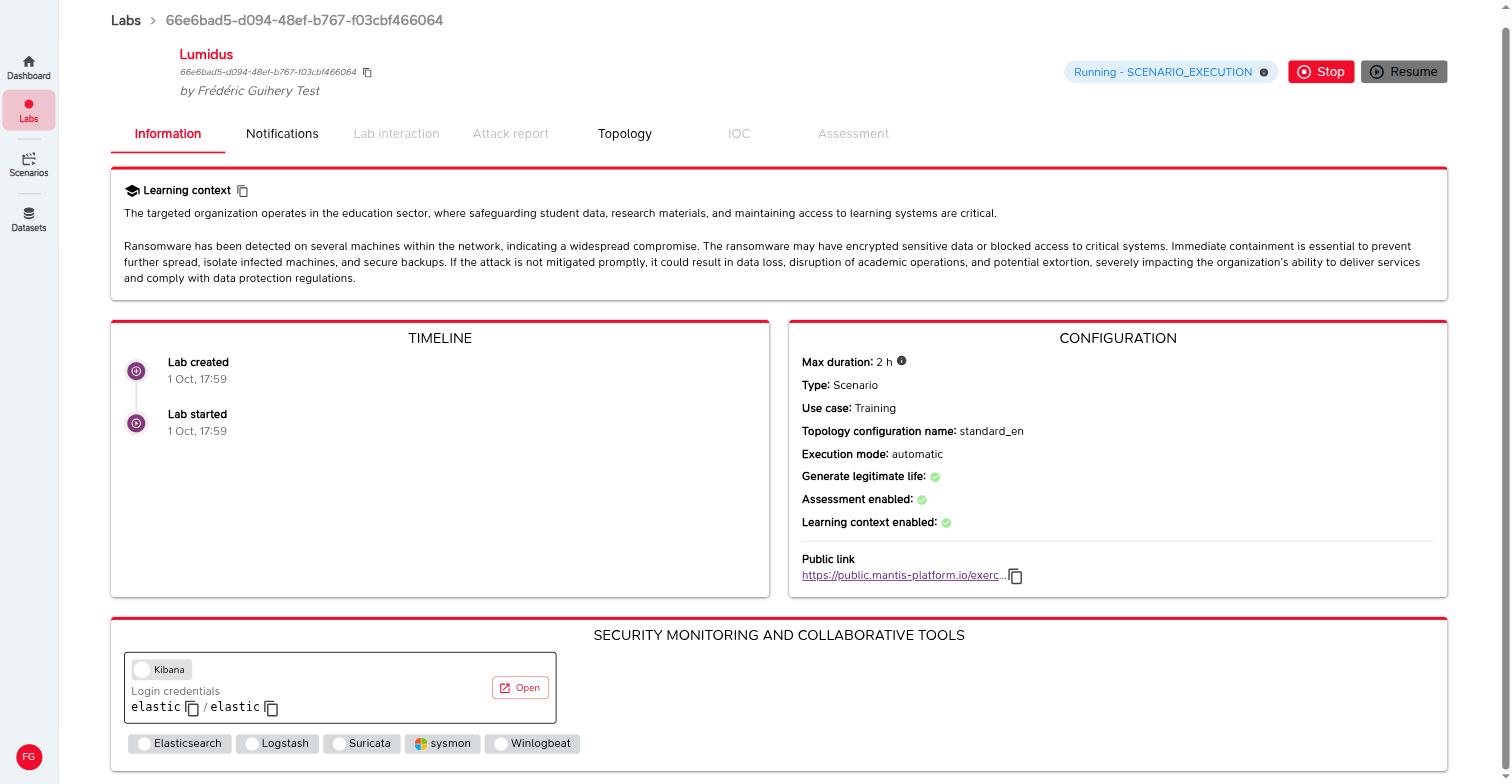
Setting up the environment takes up to 25 minutes, then the attack is played automatically. The status badge goes from Initialization to Running - SCENARIO_EXECUTION, then Running - SCENARIO_FINISHED.
The tabs you will use:
| Tab | What for |
|---|---|
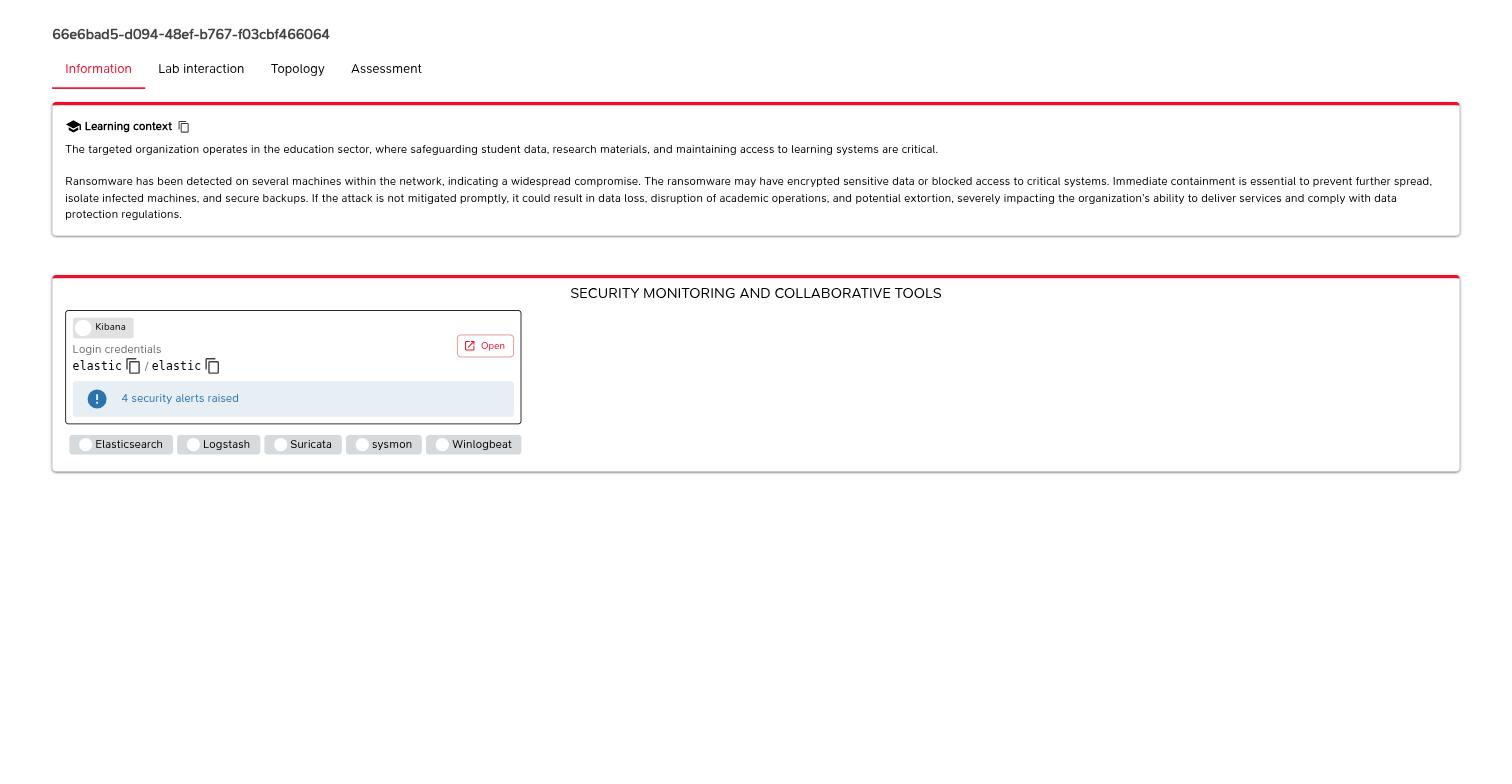
| Information | The analysts' briefing, the Public link, and the SIEM card with its login credentials, an Open button and the number of alerts raised |
| Notifications | Progress of the lab |
| Lab interaction | Remote access to the machines, for hands-on investigation |
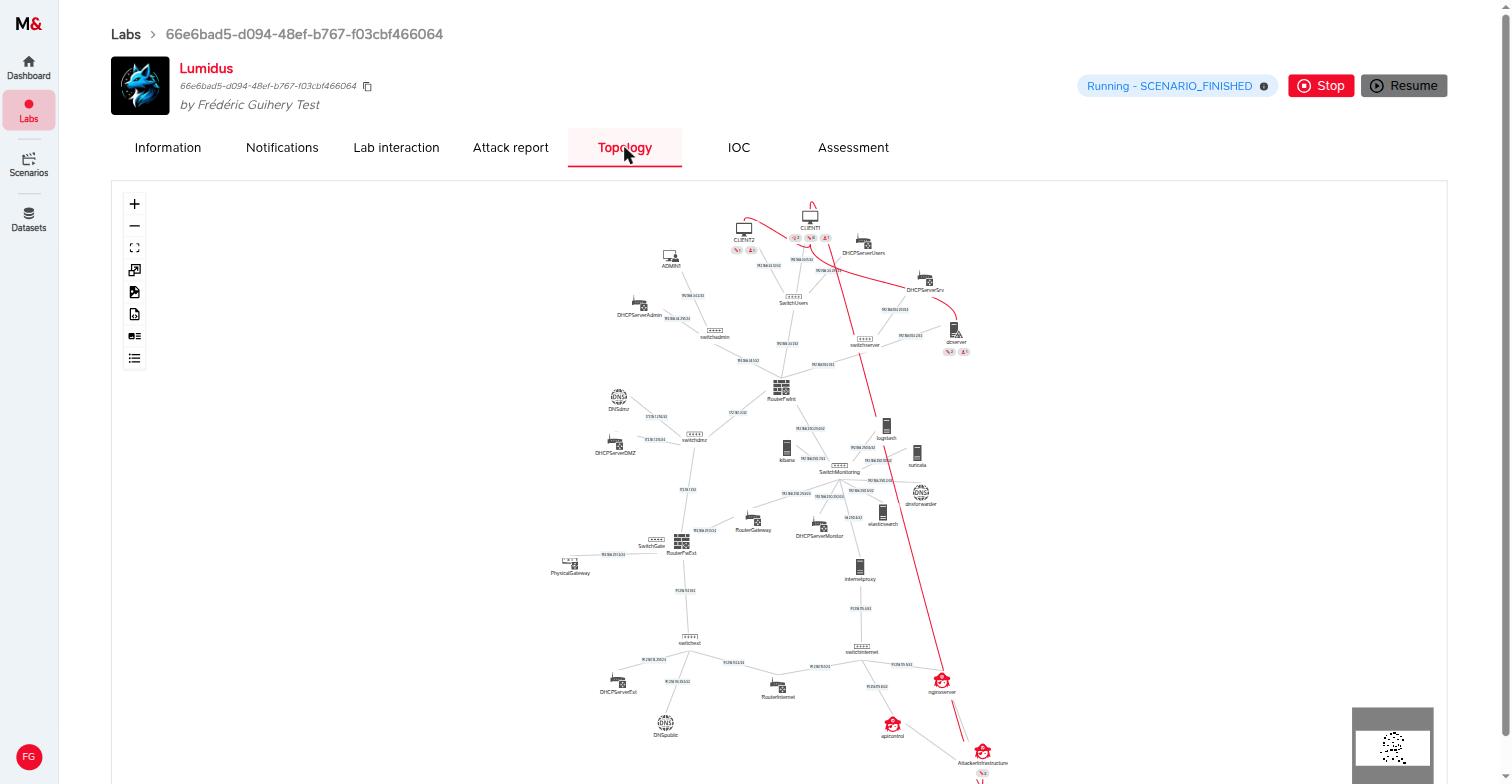
| Topology | Map of the simulated network |
| Assessment | The questionnaire and your analysts' scores |
| Attack report, IOC | What the attacker did, locked until you reveal it in the debrief |
To train as a team, copy the Public link from the Information tab and send it to your analysts. They do not need an account. They all work in the same lab and the same SIEM at the same time, but their view hides everything about the attack: no attack report, no IOC, no notifications, and no Stop button.
Warning
Anyone who has the link can open the lab and its SIEM. Share it only with your analysts.
4. Investigate from the alerts
When the scenario is finished, the SIEM card shows how many alerts were raised. Click Open and log in with the credentials shown on the card.
M&NTIS deploys detection rules matching the scenario into the SIEM.
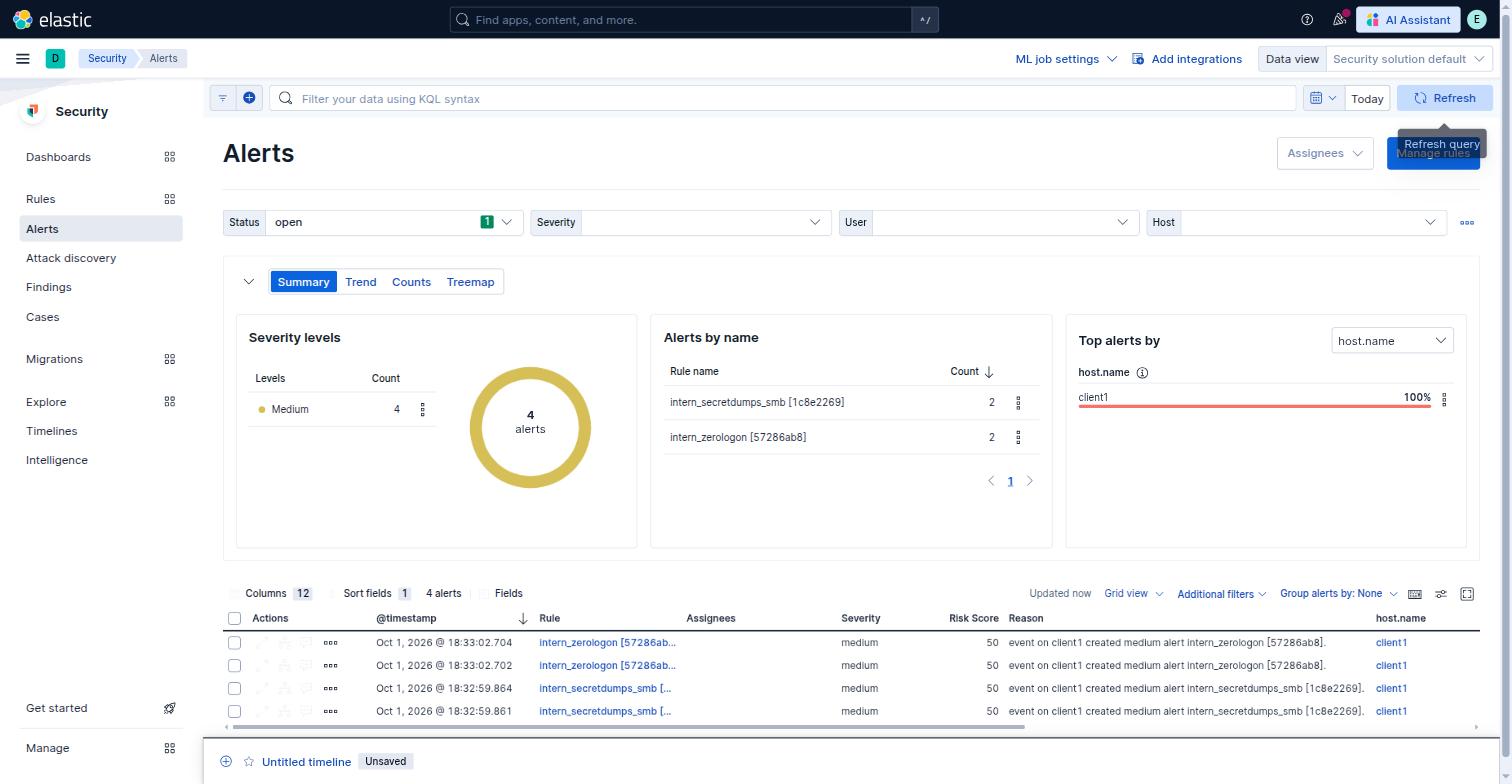
From there, analysts pivot to the raw events (Discover in Kibana) to rebuild the intrusion. The lab collects Windows event logs and Sysmon events from the endpoints (process creation, network connections, logons) and Suricata events from the network. Good first queries:
host.name : "client1": everything on the host of the alert;event.code : "1": processes started on Windows machines (Sysmon);event.module : "suricata": network traffic, including web downloads and connections to the Internet.
If you enabled the assessment, analysts answer its questions in their Assessment tab (payload server, C2 address, compromised machines, ...), and you see their scores on this page.
5. Debrief: reveal the attacker's steps
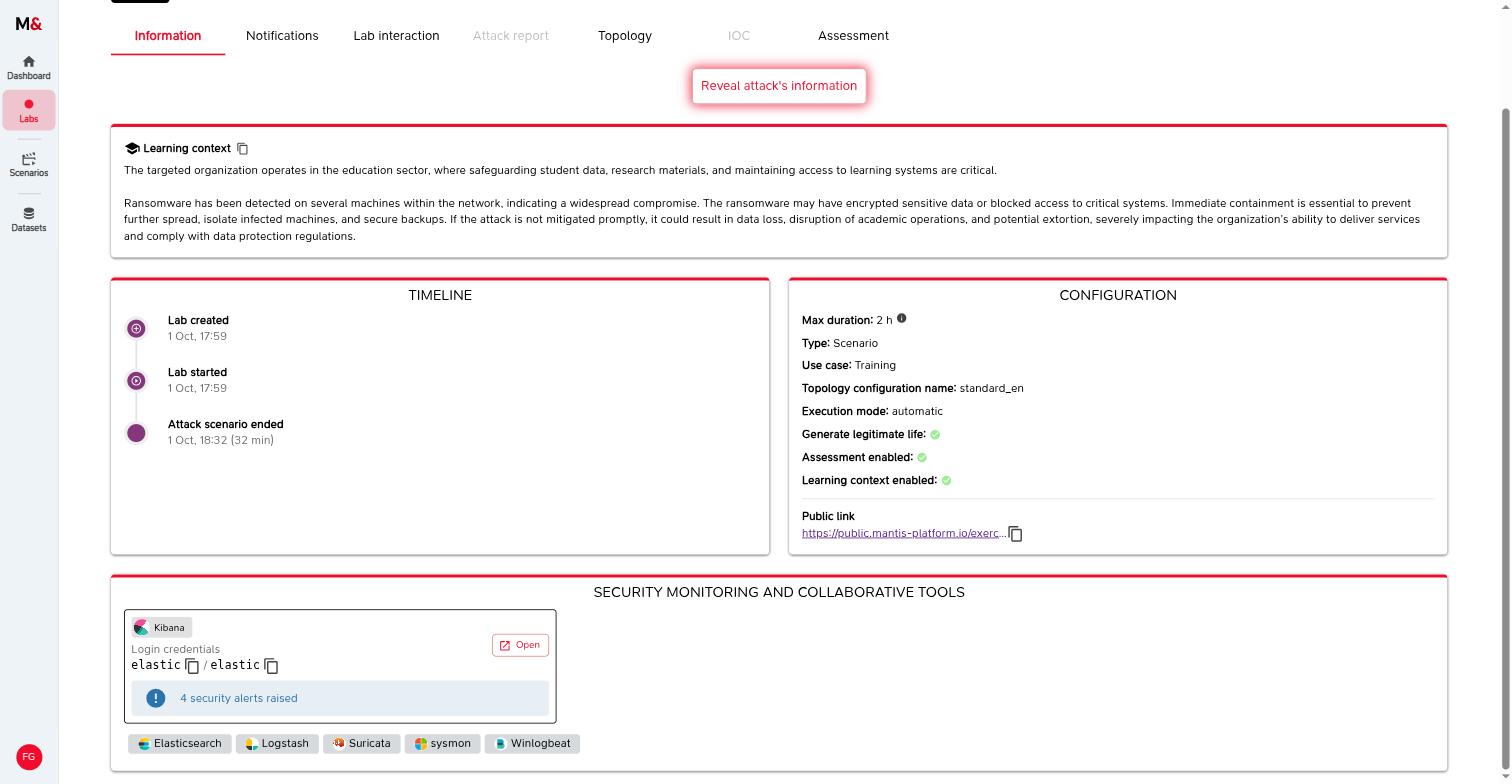
Once the scenario is finished, the Information tab of your lab shows a Reveal attack's information button. Click it when you are ready for the debrief. It unlocks the views below in your lab page only, so share your screen with the team.
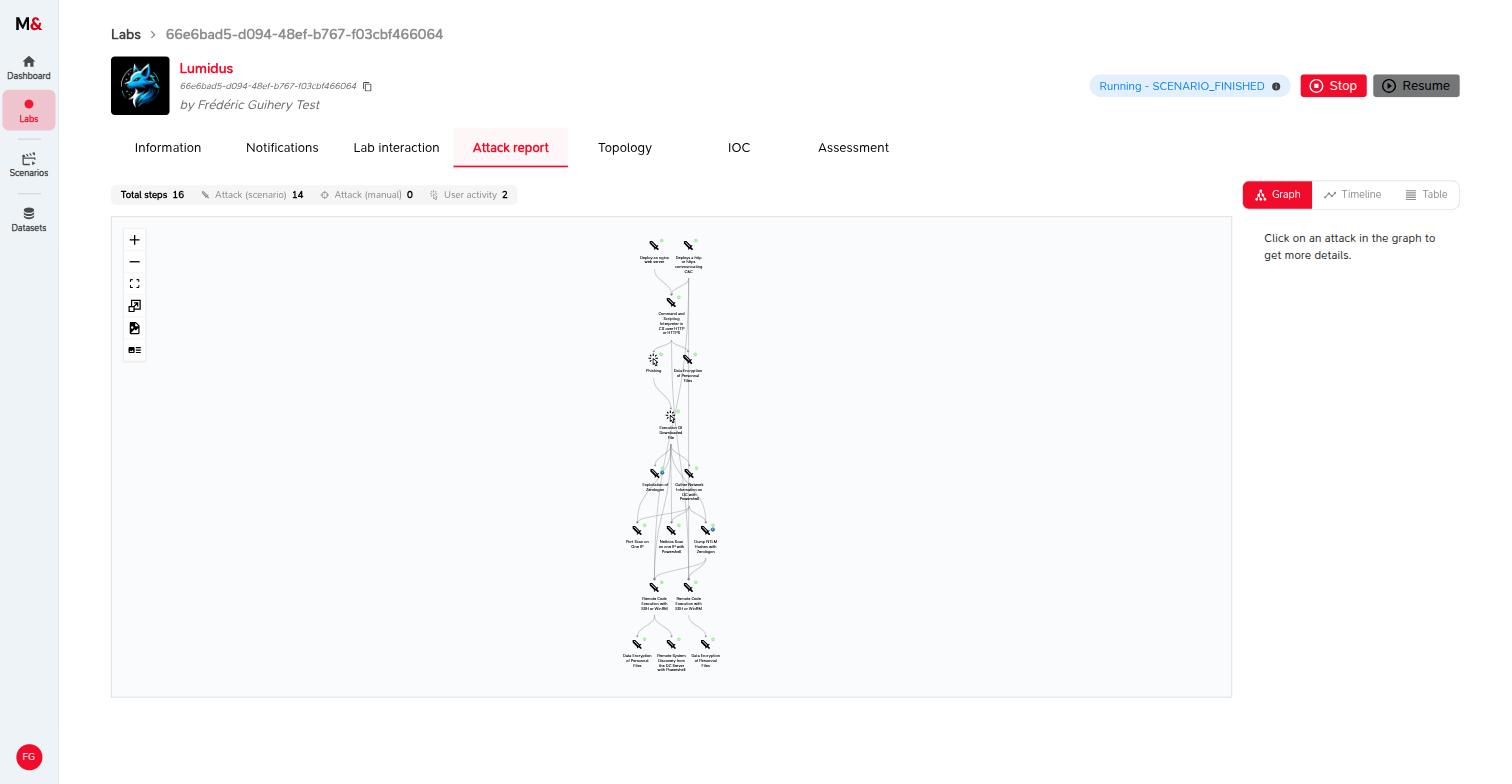
Attack report: every step of the kill chain, with its MITRE ATT&CK technique, its source and target machines, the commands the attacker ran and their output, and the SIEM alerts linked to it.
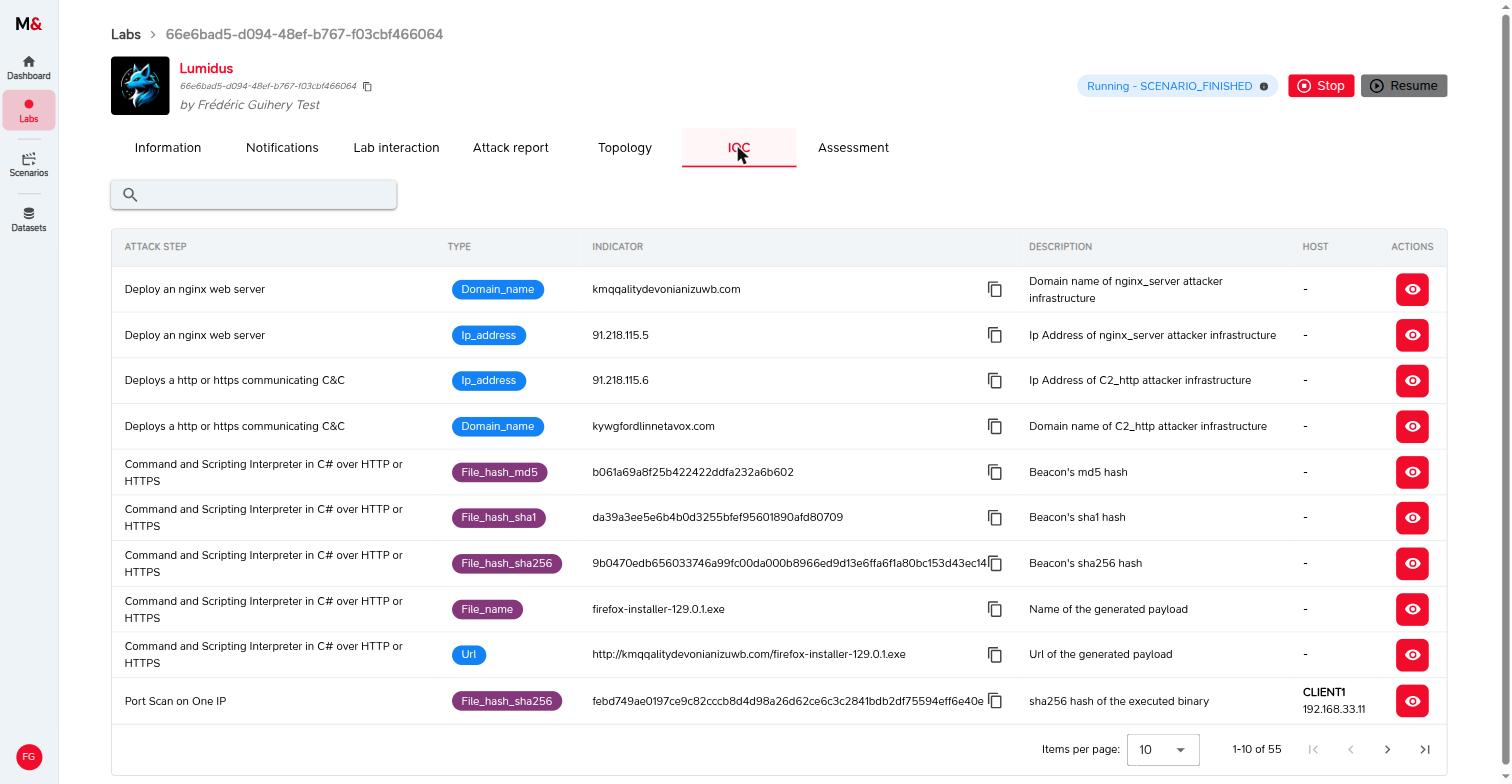
IOC: all the indicators of compromise left by the attack (domains, IP addresses, hashes, file names), each linked to the step that produced it.
Topology: the attacker's path, drawn in red across the network.
When you are done, click Stop to end the lab.
Going further
- SOC/CERT analyst training in live labs, the detailed version of this guide: every wizard option, every lab panel, and how to run the debrief.
- Monitoring and integrations, to train with your own EDR or cloud SIEM.